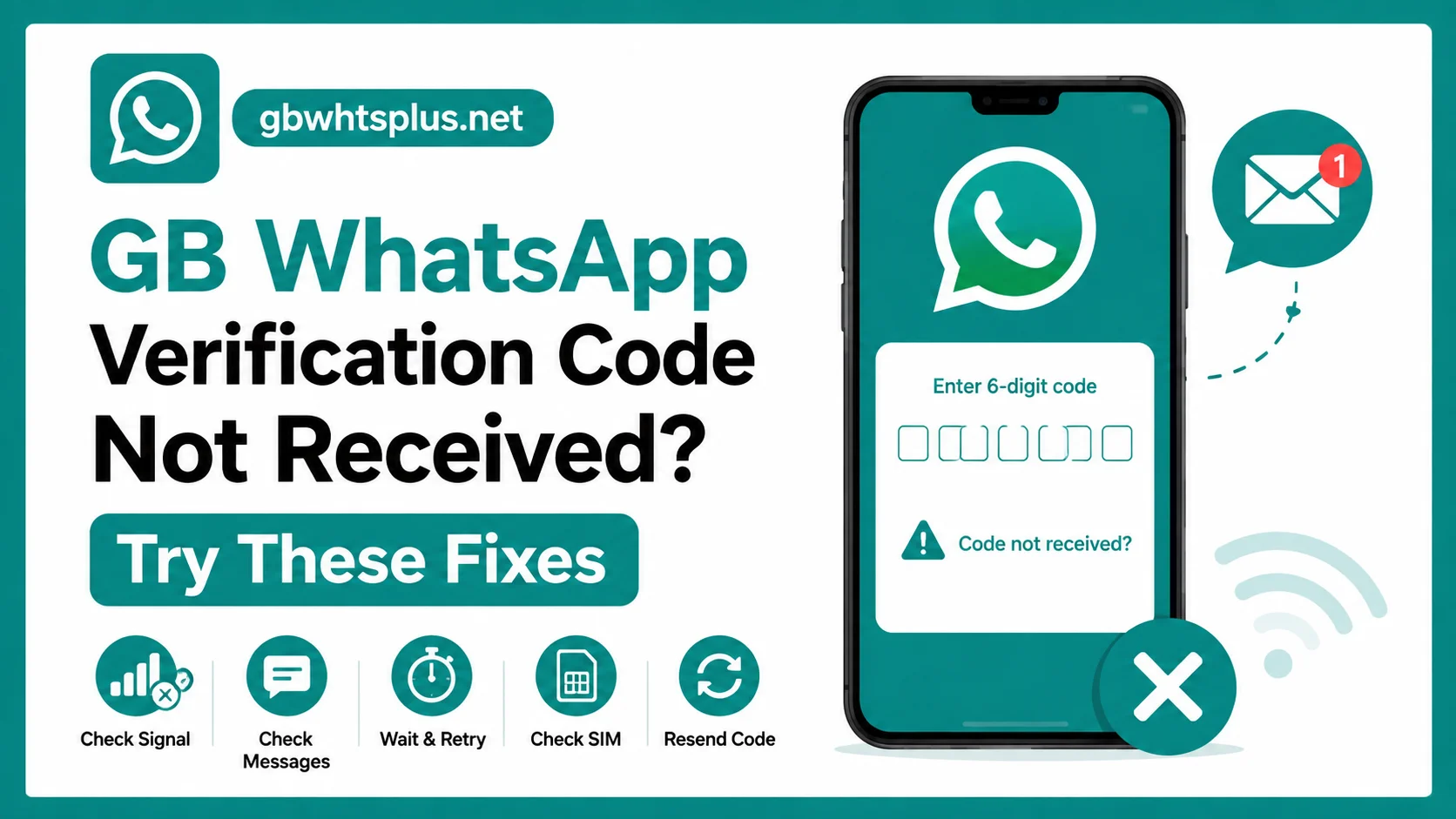
Hitting a wall at the verification step is one of the most common issues with GB WhatsApp Pro. You enter your number, wait for the SMS code, and nothing arrives. Sometimes the code shows up minutes late. Other times it never comes at all. The good news is that almost every verification problem has a fix. This guide walks you through every reason the code might be missing and the exact steps to get unstuck.
Why the Verification Code Sometimes Does Not Arrive
The SMS verification system is the same one WhatsApp uses for the official app, and it is generally reliable. When it fails, the cause is usually one of a few recurring issues.
- The phone number was entered without the correct country code.
- Your mobile carrier is blocking short-code SMS messages.
- You are on a weak network and the SMS is being delayed.
- The same number was registered on another device recently.
- Your phone is forwarding SMS to a different app or service.
- The GB WhatsApp version is outdated and out of sync with the server.
- Too many verification attempts in a short window triggered a temporary block.
Identifying the right cause saves a lot of time, so go through the list below in order.
Fix 1: Double-Check the Phone Number
The most common cause of a missing code is a simple typo. The country code, the leading zero, and the digit count all need to be correct.
- Open GB WhatsApp and tap Change Number or Edit.
- Confirm that the country code matches your country.
- Remove any leading zero that is not part of the country code.
- Re-enter the full number and tap Next.
If the number was correct, try adding or removing the country code. Some countries expect the zero, others do not. The gbwhtsplus.net FAQ has a short list of country-specific rules, but the easiest approach is to test both formats and see which one delivers the SMS.
Fix 2: Request a Call Instead of SMS
GB WhatsApp includes a Call Me option that triggers an automated voice call with the verification code. This works even when SMS delivery is broken.
- Wait for the SMS timer to count down to zero on the verification screen.
- Tap Call Me when the option appears.
- Answer the incoming call from the WhatsApp verification system.
- Listen to the six-digit code and enter it in the app.
- Complete the setup process.
The call usually arrives within thirty seconds. If you miss it, request another call right away. There is no limit on the call option within a reasonable window.
Fix 3: Switch to a Stronger Network
Weak signal strength is a surprisingly common reason for SMS delays. The verification message has to travel through several servers, and a single drop in connection can block it.
- Move to a spot with full signal bars.
- Toggle airplane mode on for ten seconds, then off to refresh the connection.
- Connect to Wi-Fi so the verification request uses a different channel.
- Try a different SIM if you have a dual-SIM phone, then enter that number.
If the code arrives after switching networks, your mobile carrier is the culprit. You can keep using GB WhatsApp on the second SIM, or contact your carrier to ask why short-code SMS messages are being delayed.
Fix 4: Update GB WhatsApp to the Latest Build
Older versions of the mod can fall out of sync with the WhatsApp server. The result is a verification loop where the code never arrives because the server does not recognize the client.
- Open gbwhtsplus.net in your phone browser.
- Compare the version number with the one installed on your device.
- If the site is newer, download the latest APK.
- Install it over the existing app and try verification again.
The latest build always includes the server handshake fixes that ship with each new WhatsApp release. Keeping the app current is the easiest way to avoid this whole class of issues.
Fix 5: Clear the App Data and Retry
Cached data from a previous installation can confuse the verification flow. Clearing it forces a fresh start.
- Open Settings, then Apps, then GB WhatsApp.
- Tap Storage, then Clear Data.
- Reopen the app and start the verification process from scratch.
Clearing data removes the local chat database, so make sure you have a Google Drive backup before doing this. After the data clear, the verification should work like a brand new install.
Fix 6: Wait Out the Cooldown
If you have tried multiple times in a short window, WhatsApp may have temporarily blocked the number. The block usually clears within a few hours.
- Stop entering the number for at least two to three hours.
- Avoid requesting calls repeatedly because that adds to the cooldown.
- After the wait, retry with a single request and wait patiently for the SMS.
Most blocks clear within six hours. If you are still locked out after a full day, the issue is more serious and you may need to contact WhatsApp support through the official app.
Fix 7: Remove SMS Forwarding and Filtering Apps
Some Android phones come with built-in SMS filtering or call screening apps that interfere with verification messages. Third-party SMS apps like Truecaller can also block unknown numbers.
- Open your default messaging app and disable spam filtering for unknown senders.
- Open Truecaller or any similar app and whitelist unknown numbers.
- Check your carrier voicemail app for any settings that block short codes.
- Disable call blocking for numbers outside your contact list.
Once the filters are off, request a new code. The SMS should arrive within a minute or two.
Fix 8: Try a Different Phone Number
In rare cases, a specific number is permanently blocked by the WhatsApp system. The only way around it is to use a different number for verification.
- Use a second SIM if you have a dual-SIM phone.
- Borrow a friend’s phone and verify their number on your device for a quick test.
- If the test works, the original number is the problem and you will need a replacement.
GB WhatsApp can run on any active mobile number, so this is a clean workaround. Just remember to use the same number for the Google Drive backup so your chats are linked to the right account.
Quick Troubleshooting Table
| Symptom | Likely Cause | Recommended Fix |
|---|---|---|
| Code arrives very late | Weak network | Switch to Wi-Fi or stronger signal |
| No SMS, Call Me works | Carrier blocking short codes | Use the voice call option |
| No SMS, no Call Me | Cooldown from too many attempts | Wait a few hours and retry |
| Code rejected on entry | Wrong country code | Re-enter with correct format |
| Stuck on verifying | Outdated GB WhatsApp | Install the latest from gbwhtsplus.net |
| App crashes on verification | Corrupted app data | Clear data and reinstall |
When to Reinstall GB WhatsApp
If the verification still does not work after trying the steps above, a clean reinstall is the last resort. Uninstall the app, restart your phone, then install the latest APK from gbwhtsplus.net. The fresh install clears every cached state and forces the server to treat your number as a new request. Most stubborn verification loops disappear after a clean reinstall.
Frequently Asked Questions
The code usually arrives within one minute. If it has not arrived in five minutes, switch to the Call Me option.
No. WhatsApp requires a working phone number for verification. Email-based verification is not available.
Repeated failed attempts trigger a temporary cooldown, not a permanent ban. The cooldown clears within a few hours in most cases.
The code is always six digits. If you receive anything shorter or longer, the message is not from WhatsApp and should be ignored.
Yes, but only one device can be active at a time. Registering the number on GB WhatsApp logs the official app out, and vice versa.
Conclusion
A missing verification code is almost always a small issue with a simple fix. Start by checking the number, then try the Call Me option, and finally update GB WhatsApp from gbwhtsplus.net. If those do not work, clear the app data, wait out the cooldown, or reinstall the latest build. With a little patience, you will be inside the app and back to messaging in just a few minutes.